Ledgerly
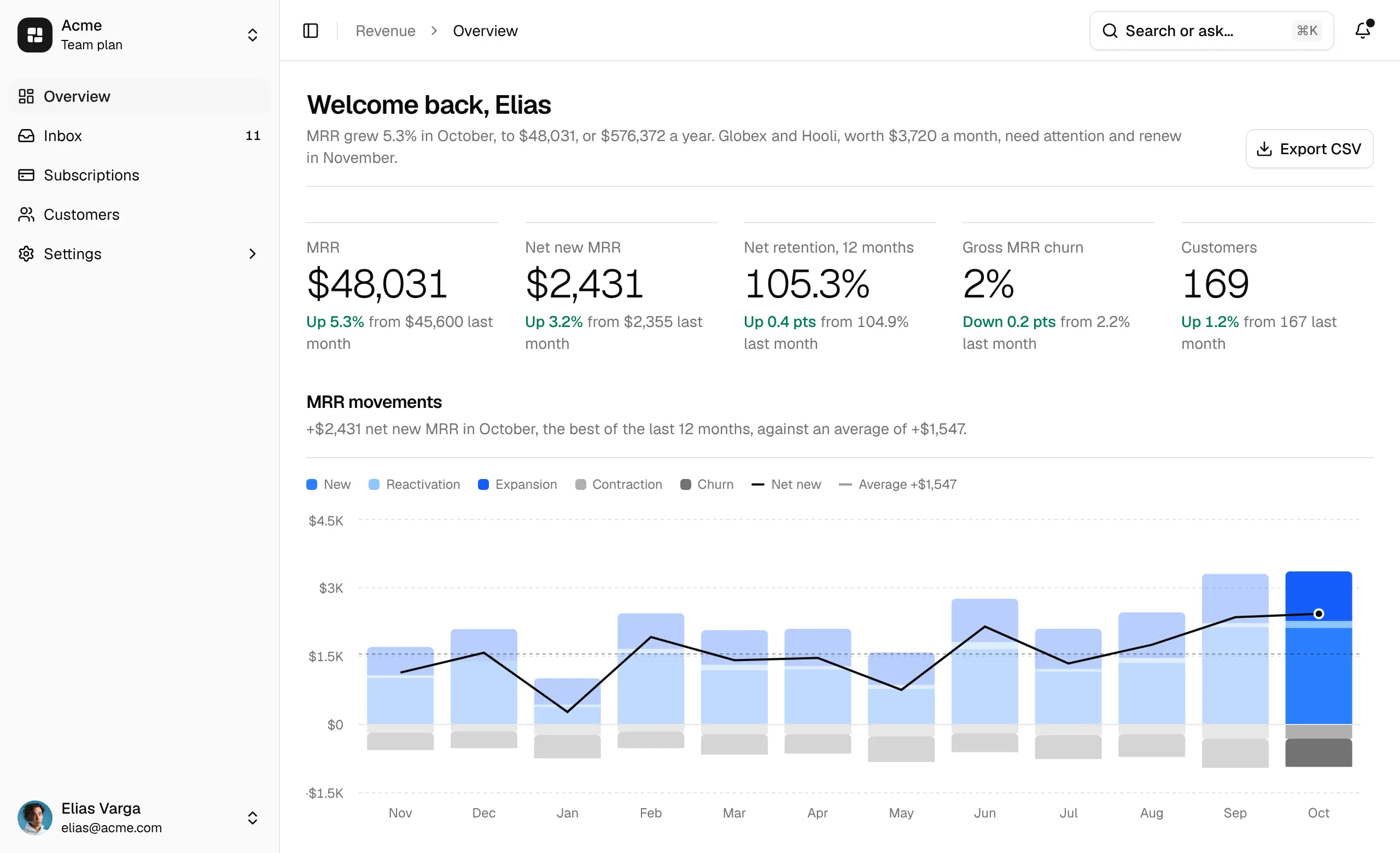
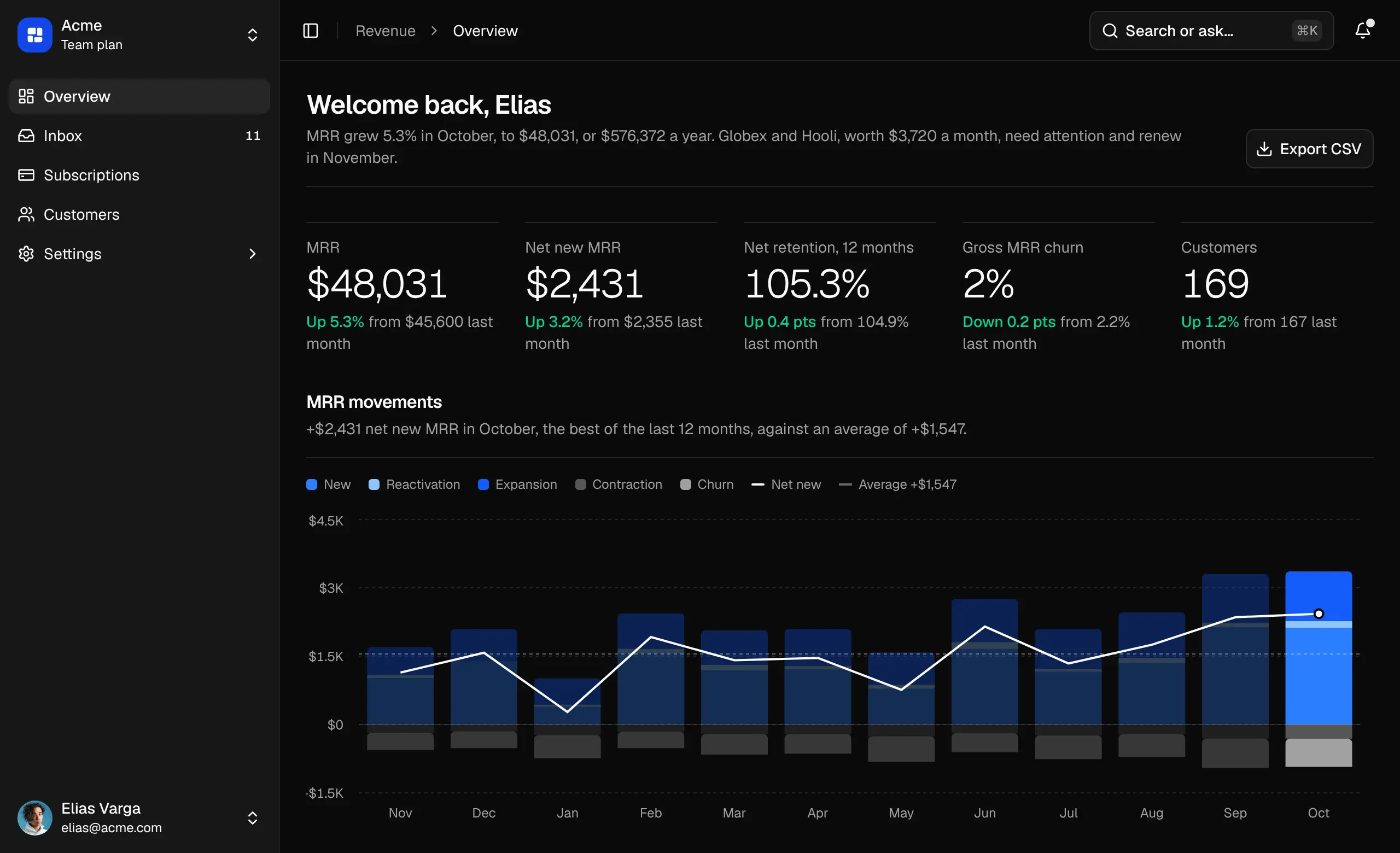
A revenue app for a subscription business on Stripe. MRR and what moved it, every subscription and customer, an inbox for failed payments and accounts that need a look, and settings for the team, billing and single sign-on.
- Pages
- 12Revenue, customers, an inbox and settings, with a page for each customer.
- Roles
- 4Owner, admin, member and viewer.
- Component libraries
- 3Base UI, Radix UI or React Aria.
- Icon libraries
- 5From Lucide to Remix Icon, swapped on install.
Pages
Each opens in the live preview, on the sample data.
- OverviewRevenue (opens in a new tab)
- Inbox (opens in a new tab)
- SubscriptionsRevenue (opens in a new tab)
- CustomersRevenue (opens in a new tab)
- CustomerRevenue (opens in a new tab)
- ProfileSettings (opens in a new tab)
- WorkspaceSettings (opens in a new tab)
- MembersSettings (opens in a new tab)
- BillingSettings (opens in a new tab)
- Single sign-onSettings (opens in a new tab)
- Audit logSettings (opens in a new tab)
- New workspace (opens in a new tab)
What you get
The whole app as source in your project, ready to wire to your own data.
Route files for Next.js
Each page is a server component that loads its data, with a loading state while it does.
One sample API
lib/ledgerly/apiholds typed async functions over sample data. Rewrite their bodies for your own data and the pages stay as they are.Writes that work
Cancel a subscription or change its plan, retry a failed charge, and invite or remove members.
Room for your auth
/sign-inand/sign-outstand in for your auth library’s own routes, and one permission table checks every write.Made of the blocks
Every part is a Dashboardblocks block that installs with it, in your shadcn style, component library and icon set.
Install Ledgerly
Ledgerly comes with All-Access and installs with the shadcn CLI, in three steps.
Add the registry
Add
@dashboardblocks-proto theregistriesincomponents.json. Keep thewww: a redirect to another host drops the token.components.json { "registries": { "@dashboardblocks": "https://www.dashboardblocks.com/r/{style}/{name}.json", "@dashboardblocks-pro": { "url": "https://www.dashboardblocks.com/r/pro/{style}/{name}.json", "headers": { "Authorization": "Bearer ${DASHBOARDBLOCKS_TOKEN}" } } } }Add your token
Create a token on your account page and put it in
Create a token.env.local, next tocomponents.json. In CI, set it as a secret instead..env.local DASHBOARDBLOCKS_TOKEN=dbp_…Install Ledgerly
Run it in a new Next.js 16 project from
shadcn create. It adds every page and the blocks they use. Then runnpm run devand open/overview.Terminal npx shadcn@latest add @dashboardblocks-pro/ledgerly-next --overwrite